
The HUD
The HUD is the small card that appears when you press your Copy shortcut. At first glance it's a receipt: an icon, the title, the link or path, confirmation that it's on your clipboard. But it's also a launchpad — hover it and a row of buttons appears.
Settings calls it the Copy Confirmation; you'll find its options under Settings → General.
The collapsed card
Right after a copy, the HUD shows:
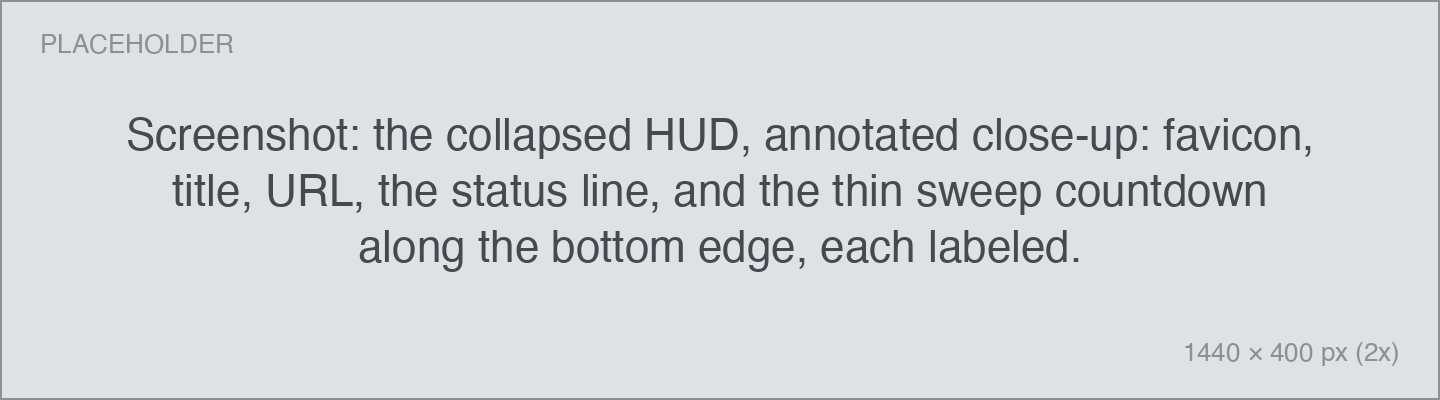
- The pin's icon, title, and the copied link or path.
- A status line — what was copied and, if you've copied it before, when.
- Optionally a thin countdown line along the bottom edge that shows when the card will dismiss. Turn it on with Settings → General → Dismiss Indicator → Sweep.
If you copy several files at once, the card shows a stacked header ("3 items"). If you copy several things in quick succession, the newest card sits on top with the earlier ones peeking out below — flip through them with ↑ and ↓ or a scroll of the mouse wheel while hovering.

Expanding the card
Two ways:
- Hover it with the pointer, or
- Press your Copy shortcut a second time.
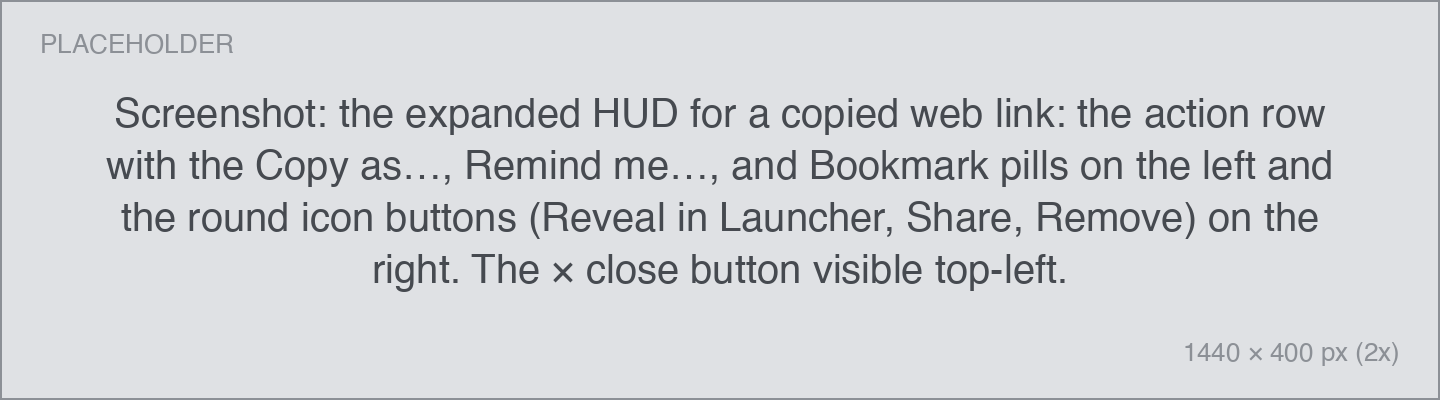
The action row appears. What's in it depends on the pin:
| Button | What it does |
|---|---|
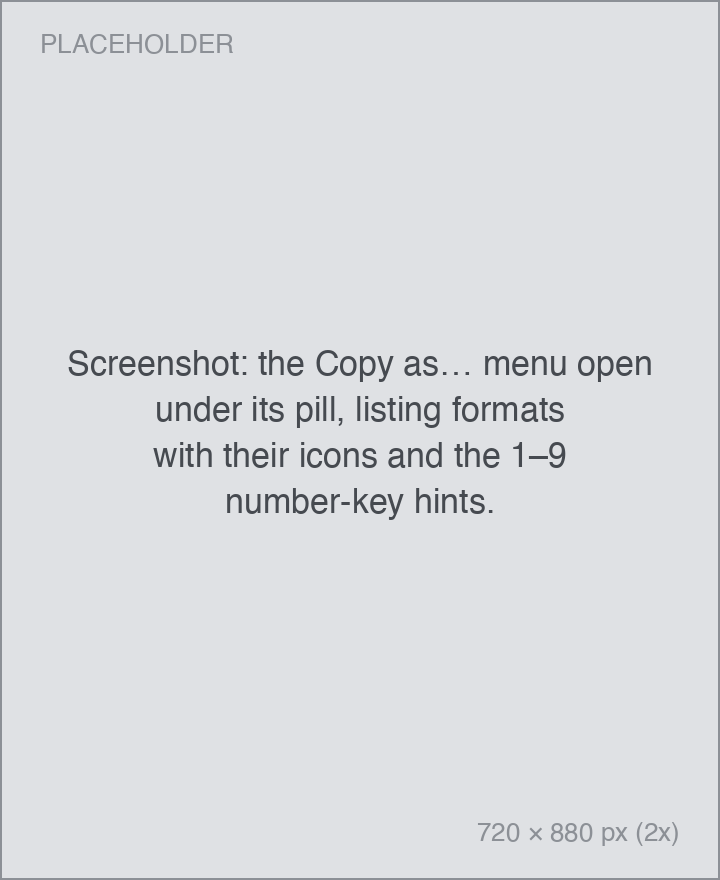
| Copy as… | Recopies the same thing in a different format — Markdown link, tilde path, and more. This menu is yours to customize; see Configuring Actions. |
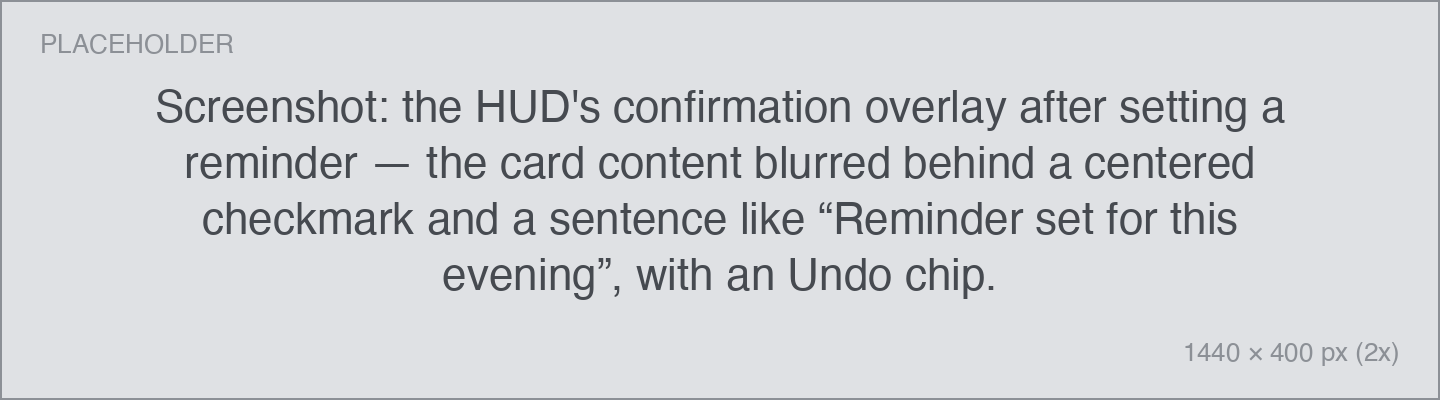
| Remind me… | Creates a linked reminder in Apple Reminders — this evening, tomorrow morning, or a time you pick. |
| Bookmark | Saves the link to Raindrop.io with a collection and tags. Appears when you're signed in to Raindrop. Shows Bookmarked with a checkmark if it's already saved. |
| Reveal in Launcher | Opens the Launcher with this pin selected. |
| Get Info | Opens the Finder Get Info panel. Files only. |
| Share… | The standard macOS share sheet. |
| Remove from History | Deletes the pin. |
A round close button appears in the top-left corner when you hover — or just press esc.
Keyboard shortcuts in the HUD
While the HUD is on screen, Pinza borrows a handful of ⌘ shortcuts. They work even though another app is focused, and they stop the moment the card disappears:
| Shortcut | Action |
|---|---|
| ⌘C | Open the Copy as… menu |
| ⌘R | Remind me… |
| ⌘D | Bookmark on Raindrop |
| ⌘O | Open the item, then dismiss |
| ⌘E | Rename the pin inline |
| ⌘I | Get Info |
| ⌘S | Share… |
| ⌘L | Reveal in Launcher |
| ⌘X | Remove from history |
| ⌘W | Dismiss the card |
| ⌘, | Open Pinza's Settings |
Once you've engaged with the card (hovered it, or expanded it with the shortcut), a few plain keys work too:
| Key | Action |
|---|---|
| esc | Dismiss immediately |
| space | Hold the card open (press again to release) |
| 1–9 | Copy the nth format from the Copy as… menu |
| R | Remove from history |
| ⌘Z | Undo a rename |
How dismissal works
The card dismisses itself after a few seconds — five by default, configurable under Settings → General → Copy Confirmation Duration (2 seconds, 5 seconds, 10 seconds, or Until dismissed).
The timer is forgiving:
- Hovering pauses and refunds it. When your pointer leaves the card, the countdown starts over from the beginning — your reading time isn't charged.
- space holds the card open indefinitely.
- After an action (a reminder set, a format copied), a brief confirmation takes over the card for two seconds, sometimes with an Undo button.
Renaming a pin
Double-click the title (or press ⌘E) to rename a file right from the HUD. ⌘Z undoes it.
Position, sound, and looks
All under Settings → General:
- Position — six screen zones; bottom left is the default. You can also simply drag the card to another corner and it snaps there, updating the setting. The top-right zone is unavailable because macOS notifications live there.
The full list of options is in the Settings reference.