
Settings reference
Open Settings from the menu bar icon's right-click menu, or with ⌘, whenever a Pinza window (or the HUD) is up.
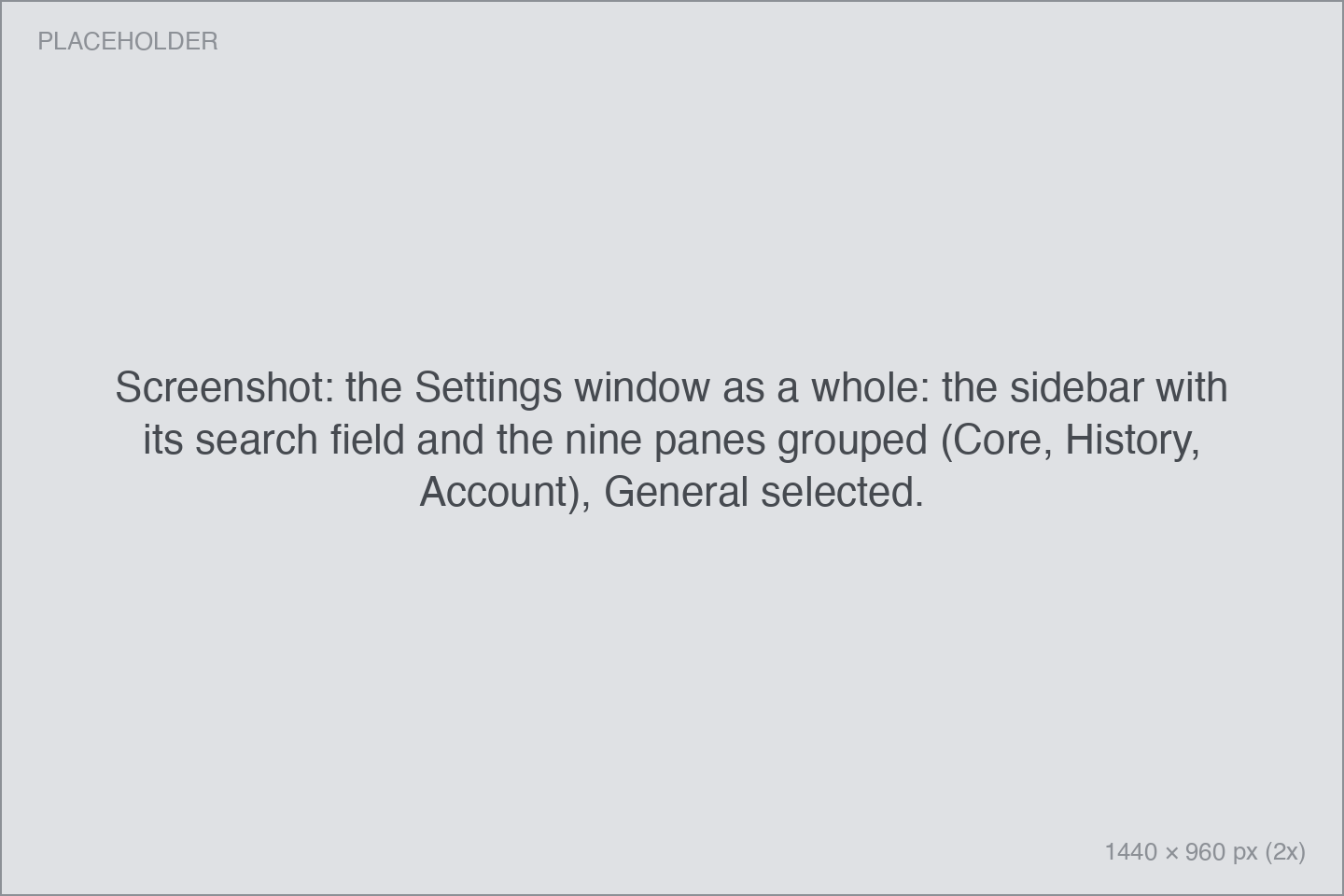
Nine panes. Defaults are marked.
General
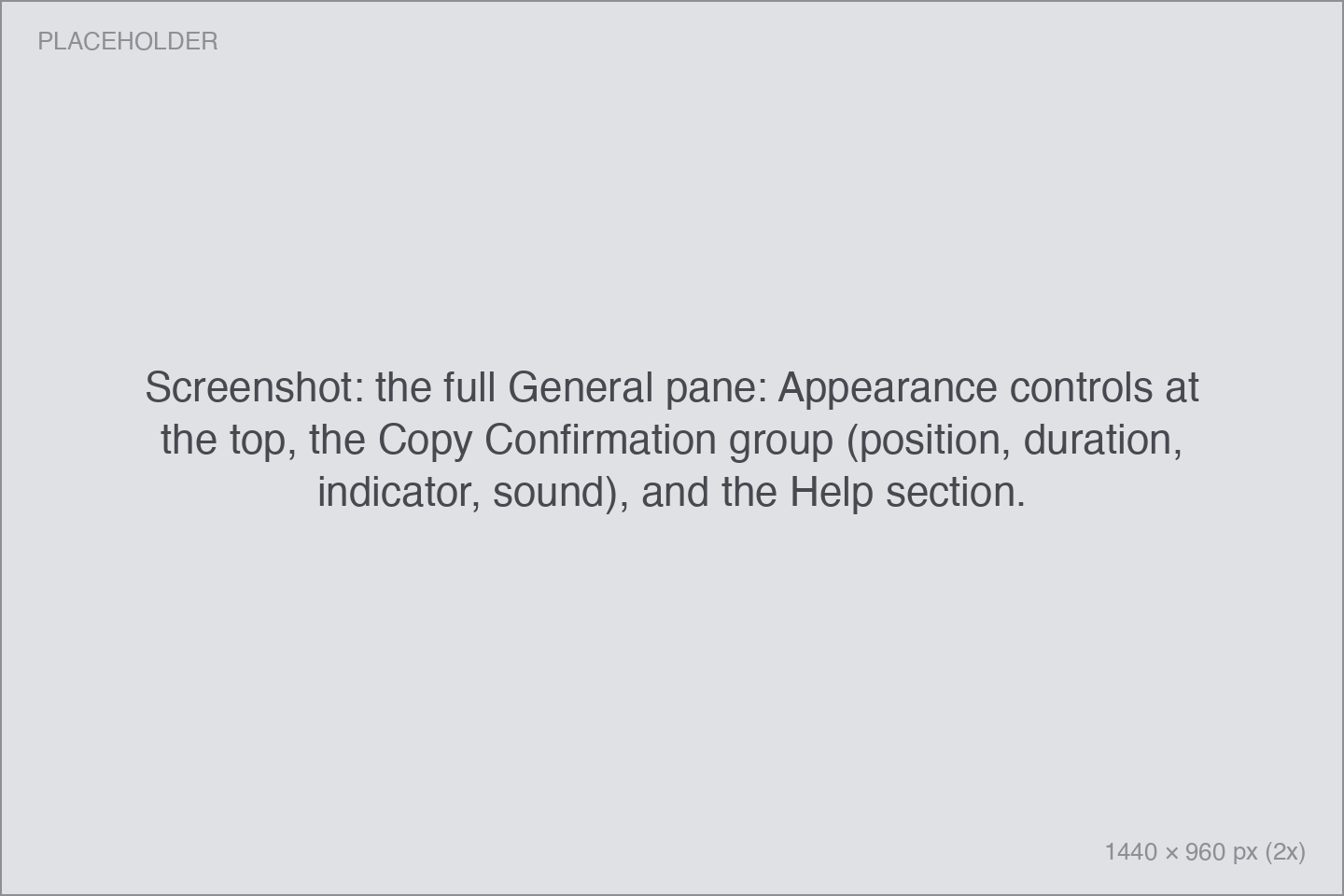
Appearance
- Launch at Login — opens Pinza automatically when you sign in. Off until you turn it on.
- Appearance — Auto (default), Light, or Dark.
- Menu Bar Icon — three paperclip variants.
- Window Style — what your Recents shortcut opens: Popover (default) or Launcher.
Copy Confirmation — the HUD:
- Position — six screen zones; Bottom Left is the default. Top Right is unavailable because macOS notifications appear there. You can also drag the HUD itself to a new zone.
- Duration — 2 seconds, 5 seconds (default), 10 seconds, or Until dismissed.
- Dismiss Indicator — None (default) or Sweep, a thin countdown line on the card.
- Sound — Pop (default), a handful of other system sounds, or None.
Help
- Show onboarding again — replays the first-run walkthrough.
- Reset Warnings — re-enables every one-time warning dialog you've dismissed.
Actions
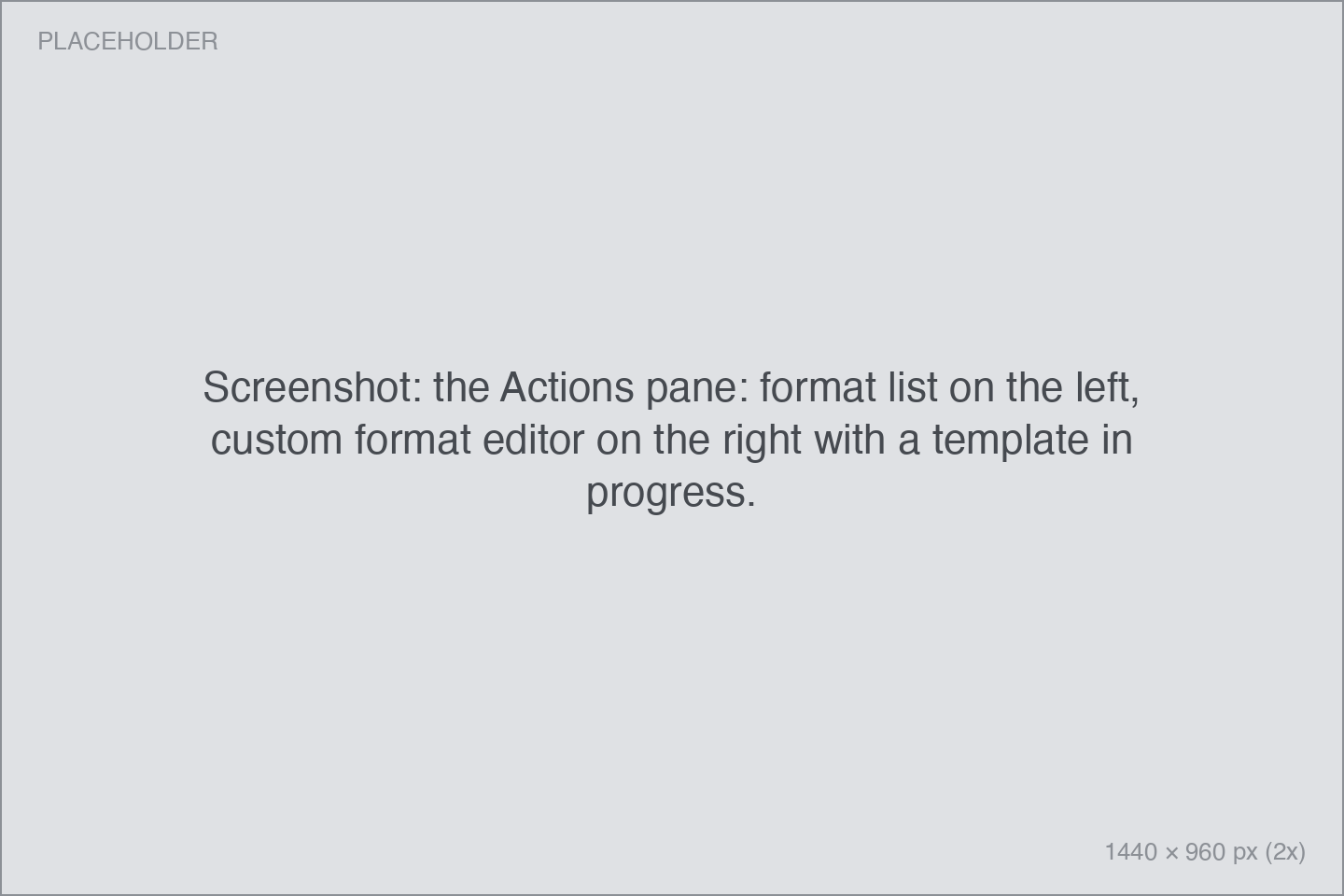
The Copy as… format list: drag to reorder, uncheck to hide, and an editor for writing your own formats as text templates, shell scripts, or AppleScript.
Integrations
Covered in depth in the Integrations section:
- Reminders — what "this evening" and "tomorrow morning" mean.
- Slack Workspaces — Team IDs for
slack://deep links. - Google Drive, Notion, Raindrop.io — sign-in buttons, plus the Raindrop HUD toggle.
- Mistral — the OCR API key.
- YouTube — playhead per browser, channel avatars (on by default).
- Terminal — which terminal app Pinza opens paths in (Terminal by default).
- Cards — keep Cards above other apps (on by default); restore Cards on launch (off by default).
- MCP Server (Pro) — the server switch and five per-tool toggles.
Shortcuts
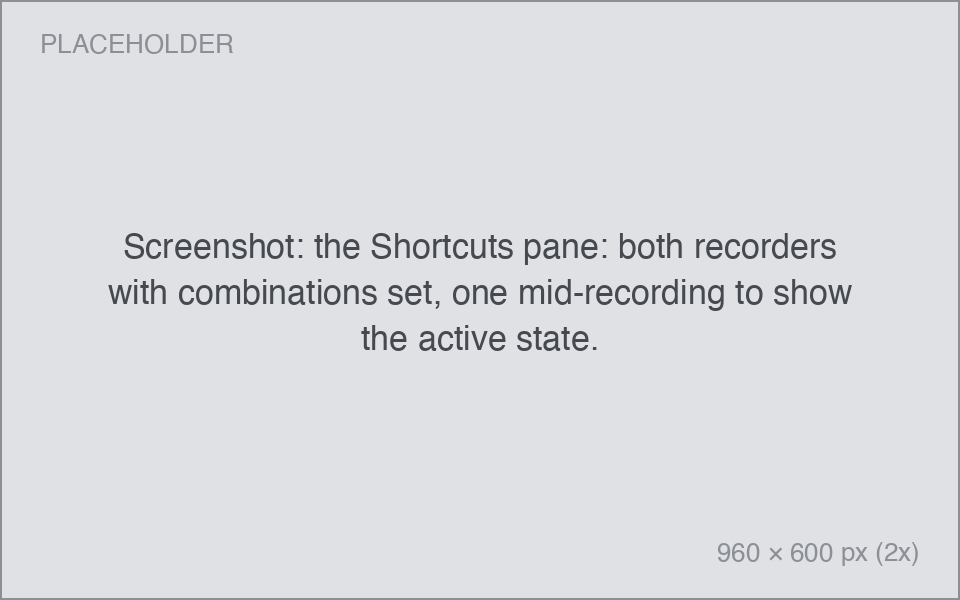
The two global shortcuts — Copy Link and Open Recents. Click a recorder and press the combination you want; click the small × to clear one. They work system-wide, even when Pinza isn't focused.
Accessibility
- Reduce Motion — Follow System (default), On, or Off. With motion reduced, Pinza's animations become instant transitions.
- High Contrast — present but not functional yet; the app says so itself.
The macOS Accessibility permission is a different thing — that's under About, and explained in Getting started.
Recently Pinned
Your pin history and how it's presented:
- Show in menu — how many pins the popover shows: 1–25, default 10.
- Fetch website favicons — on by default.
- Fetch rich preview images — on by default. The preview tooltip's decorative disc (CD or vinyl, 33⅓ or 45 RPM) is configurable, and entirely unserious.
- Check URL availability on hover — off by default; when on, Pinza pings a pin's URL as you hover it and marks dead links.
- Auto-reveal URL or path — off by default; shows the raw location as you focus a pin.
- Hide site name in page titles — on by default; trims " — Site Name" clutter from titles.
- Poof and sound on delete — on by default.
- Tooltip placement — automatic (default) or pinned left of the menu.
Recently Deleted
The Bin — a Pro feature. Deleted pins go here instead of vanishing:
- Move deleted items to Bin — on by default (with Pro).
- Keep deleted items for — 7, 30 (default), or 90 days, or Forever.
- Require Touch ID to open the Bin — on by default. Opening the Bin, or emptying it, asks for your fingerprint.
Pinza Pro
Your license: what's included, entering a key, and — once activated — your activation details and a Deactivate This Mac button (one license covers five Macs). Pro is a one-time purchase; see the FAQ for pricing and refunds.
About
- Updates — check automatically on startup (recommended) or Check Now…. Updates are signed and verified.
- Licence — where you paste a Pro key.
- Permissions — Check Accessibility Permissions… and Reset All Automation Permissions…, both useful in Troubleshooting.
- Diagnostics — anonymous crash reports, off by default.
The config file
Everything on this page is mirrored to a plain JSON file at ~/.config/pinza/config.json, which you can edit, version, and sync. See Power users.