Slack
Select a message in Slack and press your Copy shortcut: Pinza copies a link straight to that message, ready to paste into a ticket, a to-do, or another conversation.
Copying a message link
- In Slack, click the message first so it's selected.
- Make sure your cursor is not in the message input field.
- Press your Copy shortcut.
You get a https://yourworkspace.slack.com/archives/… link that anyone in the workspace can open.

Making links open in the Slack app
By default, message links open in the browser. If Pinza knows your workspace's Team ID, it can copy slack:// deep links that open in the Slack app directly.
Pinza discovers Team IDs on its own where it can — from links in your history and from your clipboard. To add one manually:
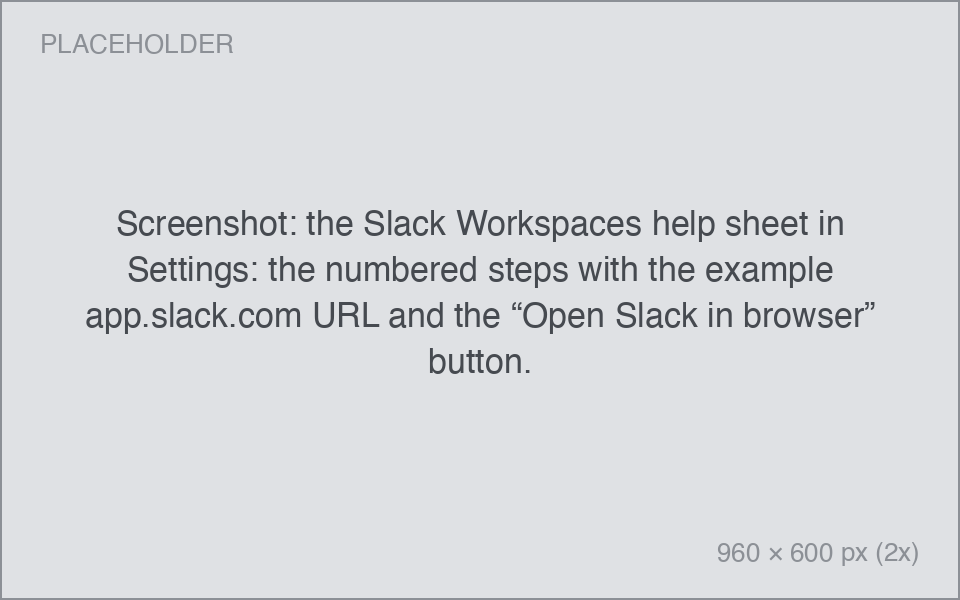
- Open Settings → Integrations → Slack Workspaces and click the help button.
- Open Slack in your browser (not the app) and sign in to the workspace.
- Look at the address bar. The URL looks like
https://app.slack.com/client/TXXXXXXXX/…— the part starting withTis the Team ID. - Copy the whole URL to your clipboard and return to Pinza. It picks the ID out for you.