MCP server
Pinza's MCP server lets your AI assistant — Claude, Codex, Gemini, or any MCP client — work with your pins: "find that article about tidal energy I saved last week" becomes a real query against your own history.
Everything runs over a local socket on your Mac. No pin data leaves the machine.
The MCP server is a Pinza Pro feature.
Setup
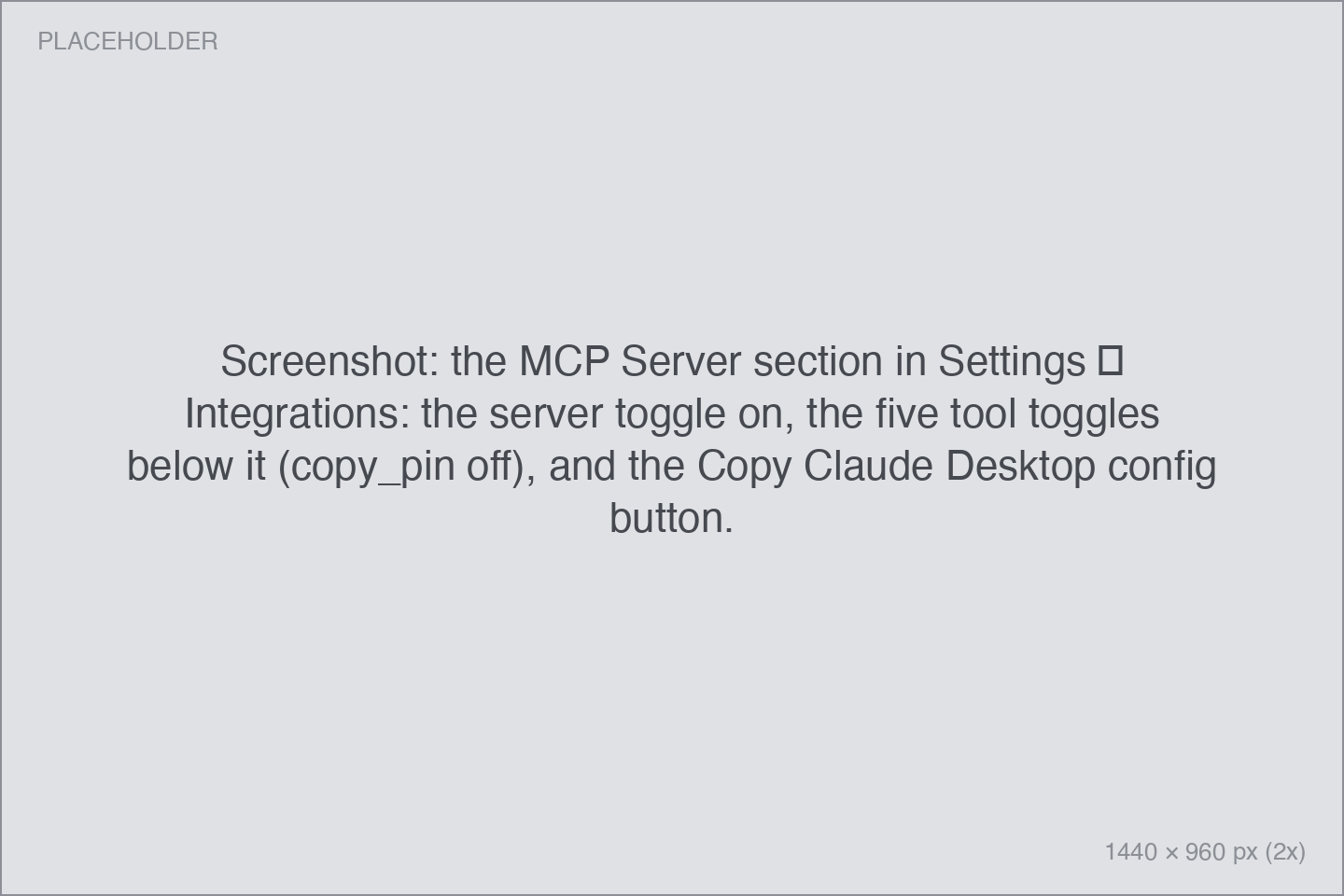
- Open Settings → Integrations → MCP Server and turn the server on.
- Click Copy Claude Desktop config. Pinza puts a ready-made snippet on your clipboard:
{
  "mcpServers": {
    "pinza": {
      "command": "/Users/you/Library/Application Support/Pinza/pinza-mcp-bridge"
    }
  }
}- Paste it into your client's MCP configuration — for Claude Desktop that's
~/Library/Application Support/Claude/claude_desktop_config.json— and restart the client.
Other MCP clients work the same way: point them at the bridge command from the snippet.
The five tools
Each tool has its own toggle in Settings, so you decide exactly what an assistant may do:
| Tool | What it does | Default |
|---|---|---|
search_pins |
Full-text search across your pins | On |
list_pins |
List pins, filtered by app, site, or date | On |
get_pin |
One pin's details, including its highlights | On |
reveal_pin |
Pop a pin up on screen as a floating Card | On |
copy_pin |
Put a pin back on your clipboard | Off |
copy_pin is the only tool that writes — it can overwrite whatever is on your clipboard — so it ships turned off. Enable it deliberately if you want it.